
If you want to skip the gacha-like “recruit” process in Pokémon Champions, you can use your existing Pokémon from other games to battle instead. To do this, you’ll need to download Pokémon Home to your Nintendo Switch to move them to the cloud storage system, where they will then “visit” Pokémon Champions for use.
There are limitations on what Pokémon you can send, as not every Pokémon is available in Champions. You can check out our list of currently available Pokémon in Pokémon Champions to see what you can ship over.
Below we explain how to transfer Pokémon to Pokémon Home, and then how to use Pokémon from Home in Pokémon Champions.
How to transfer Pokémon to Pokémon Home from other games
Before you can transfer Pokémon to Champions, you must first transfer Pokémon from other games to Home. For any Pokémon game on Nintendo Switch, the process is the same:
- Before you start, make sure all the Pokémon games you want to transfer from are updated and make sure the Pokémon you want to transfer are stored in the PC. You cannot transfer Pokémon from your parties to Home.
- Download Pokémon Home from the eShop.
- Open the app on whatever user account has your Pokémon save files.
- If you have never used Pokémon Home before, you may be prompted with an account set-up tutorial. Follow the given steps.
- Once you’re set with an account, select “Pokémon” on the main menu. This will show you all your accessible Pokémon games.
-
Select whatever game you want to transfer from. This will open the Pokémon storage system from that game, for you to move the Pokémon from your PC into Home.

- Pick up whatever Pokémon you want to move to Home and plop it in whatever box you want.
- When you’re done, press Plus to save and quit, completing the transfer.

Note that any Pokémon transferred from Let’s Go, Pikachu! and Let’s Go, Eevee! cannot be transferred back to those games once they are placed in Pokémon Home. It’s a one-way ticket for those!
If you are transferring from Pokémon Go, there’s a different set of steps you have to do, since that’s a mobile game. We recommend using our Pokémon Go/Home transfer guide for this. Keep in mind that any Pokémon you transfer from Pokémon Go is a one-way transfer and it cannot go back to Pokémon Go after being transferred to Pokémon Home.
How to make Pokémon from Pokémon visit Pokémon Champions
Before you set up any visitors for Pokémon Champions, there is one warning the game will tell you: If you transfer your Pokémon to Champions, its stats will be locked in once you accept it into the game.

So, if you have a Pikachu, and you accept it into Champions, you cannot change its stats for Champions using outside games. Even if you ship Pikachu back to Scarlet and Violet to EV train it, and then bring it back to Champions, it will still retain its Champions stats. To change its stats in Pokémon Champions, you’ll need to use VP in the “training” menu.
To use the Pokémon in your Pokémon Home storage in Pokémon Champions, you’ll need to send them to “visit” Champions. You can do this by doing the following:
- Open Pokémon Home on your Nintendo Switch.
- On the main menu, select the bottom right icon for Pokémon Champions. This will check your Nintendo account info and prompt you to link with your existing Pokémon Champions account. After doing so, your Pokémon Home boxes will open.
-
Select any of the Pokémon you want to send to visit Champions. Pokémon with the red “no entry” symbol on them cannot be sent.
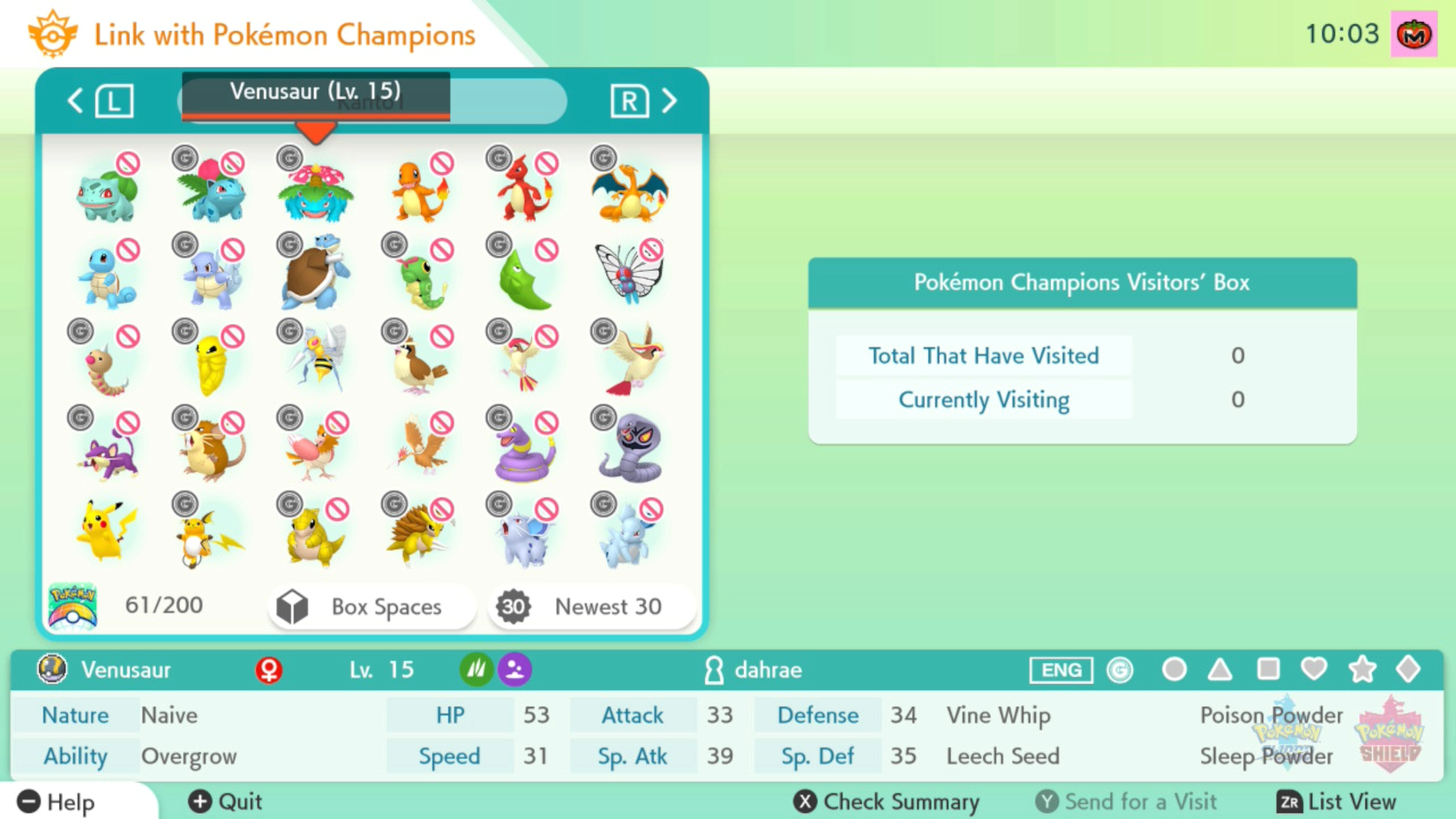
- After selecting the Pokémon, press Y to ship it off. The game will warn you that the Pokémon will still technically be in Pokémon Home, but you can’t send it to other games, release it, or edit its markings while it’s visiting Champions.
- Once you’re done selecting Pokémon, close Pokémon Home and open Pokémon Champions.
- In Pokémon Champions, select the “Recruit” menu option.
- At the ranch, select “Collect from Pokémon Home” and reconfirm that you want to bring these Pokémon in. If you made a mistake, you can choose “Send back to Pokémon Home.”

You can also send Pokémon to Champions using the mobile app version of Pokémon Home. The process for this is largely the same:
- Open the Pokémon Home app.
- Login with your Nintendo account if you haven’t already.
- Open the menu using the button at the bottom of the screen and then tap “Options.”
- Tap “Send for a visit” under the “Link with Pokémon Champions” subheading.
- Confirm the account you’re sending your Pokémon to.
- Tap each Pokémon you want to send to Champions. Ineligible Pokémon will be greyed out.
- When you’re done selecting Pokémon, tap the button in the bottom left corner of the screen to confirm your selection.
- In Pokémon Champions, select the “Recruit” menu option.
- At the ranch, select “Collect from Pokémon Home” and reconfirm that you want to bring these Pokémon in. If you made a mistake, you can choose “Send back to Pokémon Home.”
Once you have your buddy transferred over, you can train it for battle and use it freely. Note that it’s possible (and very likely) that the Pokémon you send to Champions will have moves that aren’t usable in the game. You’ll need to update the Pokémon’s moveset via the “training” menu before you can use it.
About the Author